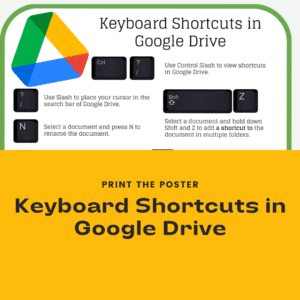
Embracing keyboard shortcuts in Google Drive can significantly enhance your productivity. These quick actions allow you to navigate and manage your digital classroom with increased efficiency. Here’s how to leverage the power of keyboard shortcuts in Google Drive. Print out the poster for quick reference.
Keyboard Shortcuts in Google Drive
Ctrl + /: View the list of keyboard shortcuts in Google Drive.
/: Place your cursor in the search bar of Google Drive.
Shift + Z: Add a document to multiple folders.
N: Rename the selected document.
S: Star or unstar the selected document.
D: Display the details or information pane of the selected document.
Ctrl + /: Instantly display all keyboard shortcuts in Google Drive, so you always have the commands you need at your fingertips.
/: Quickly jump to the search bar to locate files or folders with just a keystroke, making navigation a breeze.
Organizational Excellence
Shift + Z: Effortlessly add a document to multiple folders. This shortcut is a game-changer for multitasking educators who work with cross-curricular materials.
N: Rename your documents on the fly to maintain a tidy and organized Drive, crucial for managing a wide array of educational resources.
Streamlining Tasks
S: Star your most important documents for easy access later. This simple keystroke can help you keep track of priority files.
D: Open the details or information pane for your selected document without any mouse clicks, giving you quick insights and recent activity updates.
Enhanced Collaboration
P: Preview documents before sharing them with students or colleagues. This ensures you’re always presenting the right material.
. (period): Share your selected documents with others effortlessly, enhancing collaboration and sharing in your digital classroom.
Join Alice Keeler for this session for teaching with AI
Imagine having a team of teaching assistants who already know your syllabus and exactly how you like to give feedback. Join Google Certified Innovator Alice Keeler to learn how to use Google Gems to build a powerful collection of custom AI tools. We will explore how to engineer specific instructions so you can create a Grading Assistant or a Classroom Policy Manager that works for you. You will also learn how to leverage Gems shared by other educators to instantly expand your toolkit. This session is about super-powering your teaching by automating the routine tasks so you can focus on the students.
Exit this pop up by pressing escape or clicking anywhere off the pop up.
















2 thoughts on “Keyboard Shortcuts in Google Drive”
The keyboard shortcuts poster link doesn’t work. The file is missing.
Thank you, I must have made it on an account I no longer have access to. I will make a new one.