

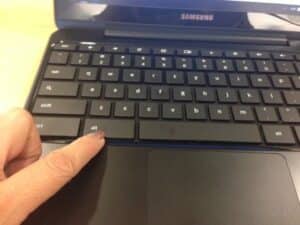




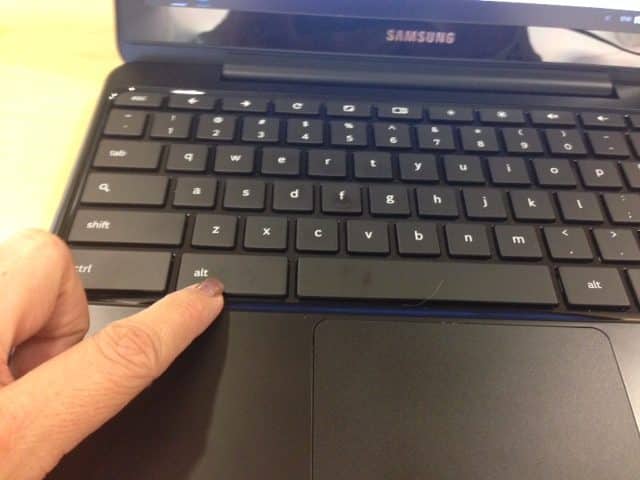
If you are a Mac user like me you may feel like your Chromebook is scrolling “backwards.” On the Chromebook you use Control (ctrl) instead of Command for common keyboard shortcuts. On a Mac the Command key is next to the spacebar, but on the Chromebook the Control key is in the corner.
Swap the Chromebook Keys
On my Chromebook I went into the settings and swapped the ctrl key and the alt key. This allows me to copy and paste using keyboard shortcuts without having to adjust where I put my fingers.
Click on the bottom right hand corner of the Chromebook screen to launch the settings.
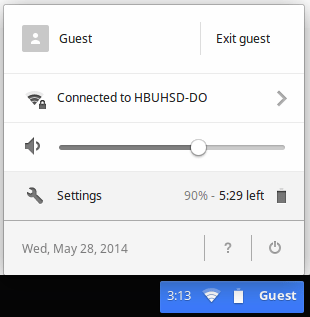
Choose Keyboard Settings under Device options.
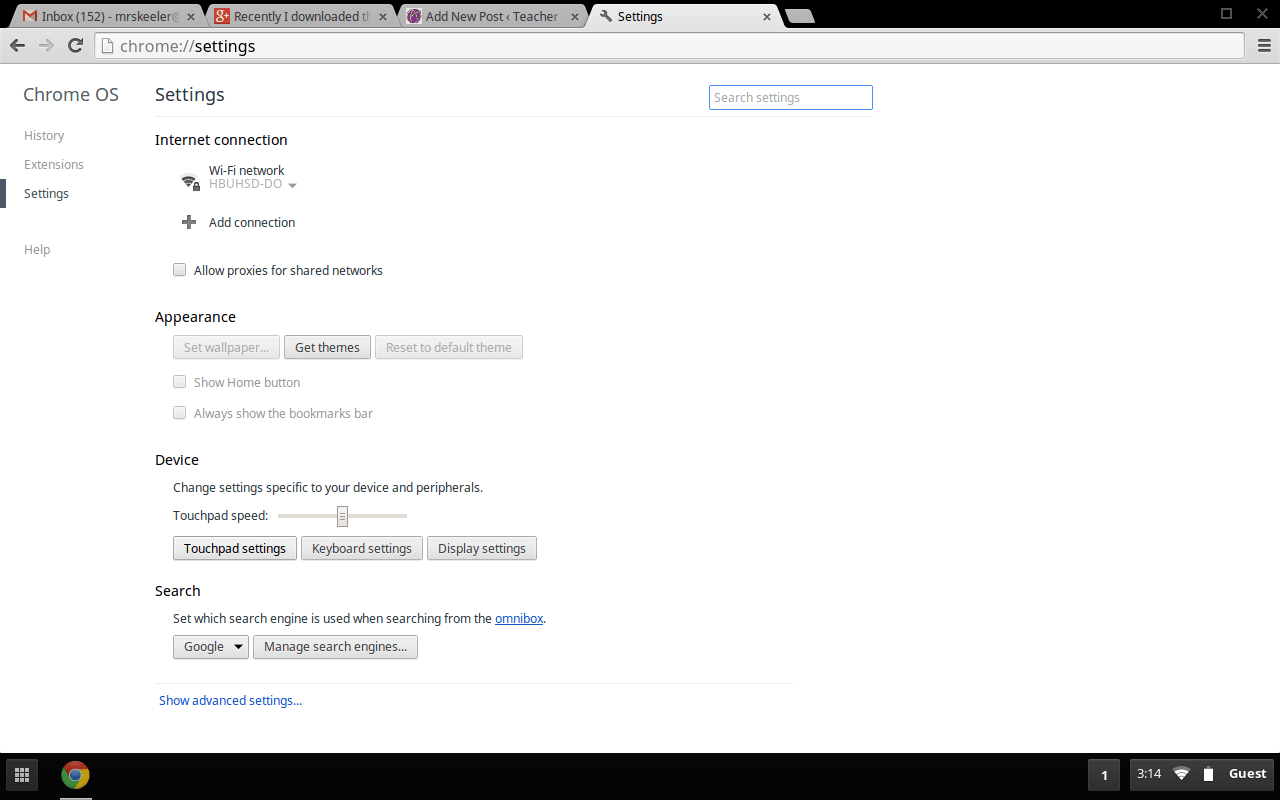
By default the ctrl key is set to “ctrl,” switch this to “alt.” Swap the alt key to “ctrl.”
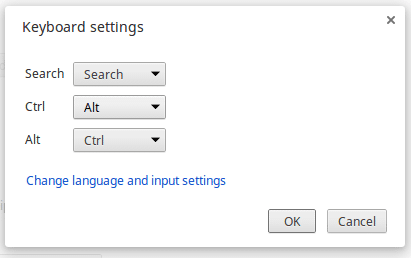
I also change my search button back into a caps lock key.
Australian Scrolling
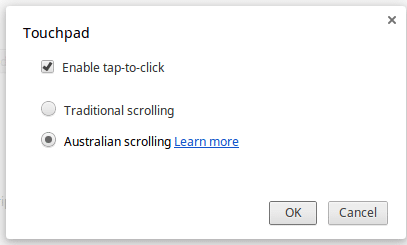
In the Chromebook settings you can change the Touchpad Settings from “Traditional scrolling” to “Australian scrolling.” This will change the trackpad to match how you scroll on a tablet device.
Across All Devices
What is great about the Chromebook is it remembers your settings. When you sign into a different Chromebook your scrolling will be switched as will your key settings. Every Chromebook is “your” Chromebook.






3 thoughts on “Make Your Chromebook More Like Your Mac”
I actually switch my Mac to traditional…. Personally can’t do the “natural” scrolling. If it were a screen I was touching that is a different case.
Shannon you get use to it quickly. It matches your tablet so all of your scrolling is the same. I predict that eventually even PC will follow suit.
I love the slick feel of the Chromebook. For those things I really want using the OS X interface, I keep Chrome Remote Desktop running on my mac lappy at home and launch the Mac desktop onto my Chromebook from anywhere.