






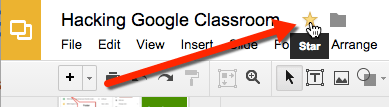
My tip for creating teacher documents is to star your originals. This is particularly helpful if you are using Google Classroom since student work is titled the same as your original documents. You can star your Google Documents by clicking on the star icon to the right of the document name in the document. From Google Drive, single click on a document and press s for star.
Searching
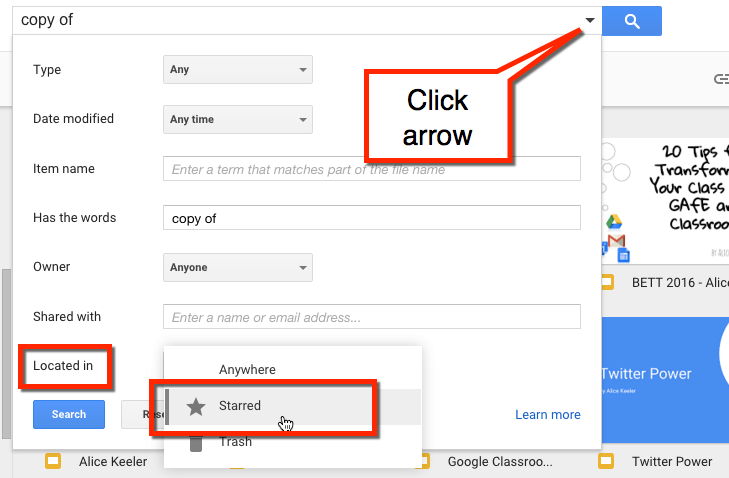
At the top of Google Drive is a search bar. You can filter your search for documents you have starred by clicking on the arrow in the search bar. Under “Located in,” choose “Starred” from the drop down list.
is:starred
My preferred method of searching for starred documents is to type is:starred into the search box. Once you’ve memorized this it is much faster.
is:starred

Google Classroom
This trick works in Google Classroom also. When attaching a file from Google Drive, type is:starred in the search box from Google Classroom.






3 thoughts on “Google Drive: Filter Is:Starred”
Great timesaving tip. Thanks, Alice!
What tool are you using to put the red arrow and red boxes around the images? Thank you Ara
Snagit. I love it.