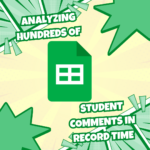


One issue I hear concerning Google Classroom is the number of emails it can generate. In order to filter your email in Gmail, you need something consistent to filter for.
Assignment Titles
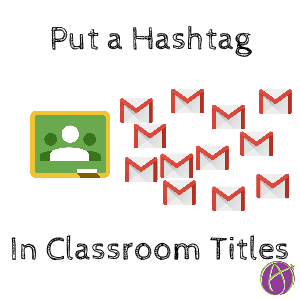
Create a class hashtag. Place this in the title of anything you post to the Stream in Google Classroom. You can put other tags to create additional categories to filter for in Gmail. Note that if your assignment title is long, the email generated truncates the end of the title. Be aware that your hashtag may be cut off in the email notifications. Suggestion to put hashtag after the assignment number.
(assignment number) (class hashtag) (assignment title)
Gmail
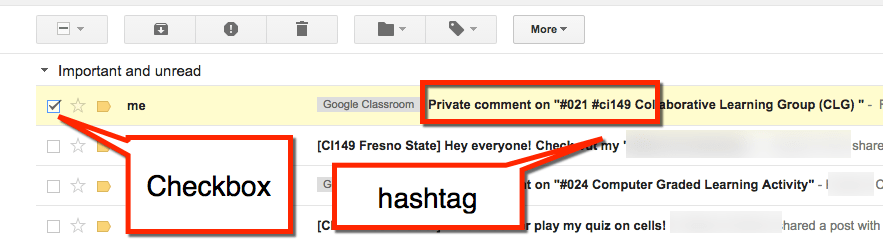
In Gmail, check the checkbox next to a notification email from Google Classroom.
More Menu
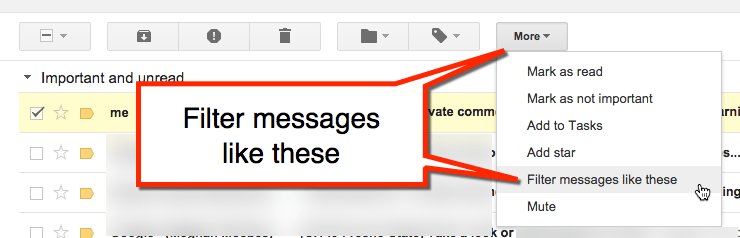
Use the “More” menu to filter messages.
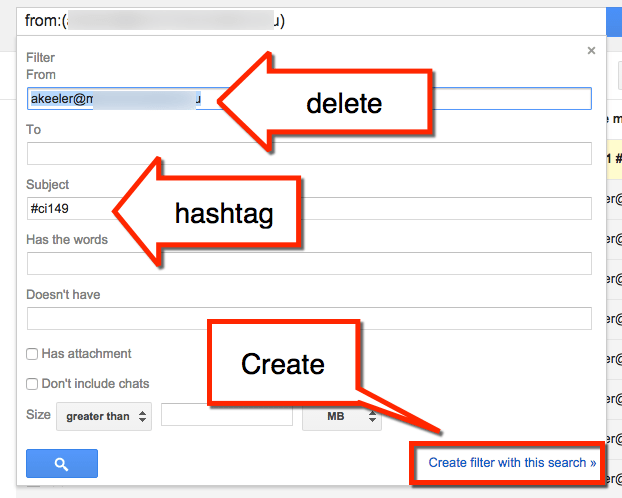
By default the filter is for sender email address. Delete this. Under the filter for “Subject” type in the class hashtag. Click on the “Create filter with this search” link in the bottom right.
Apply the Label
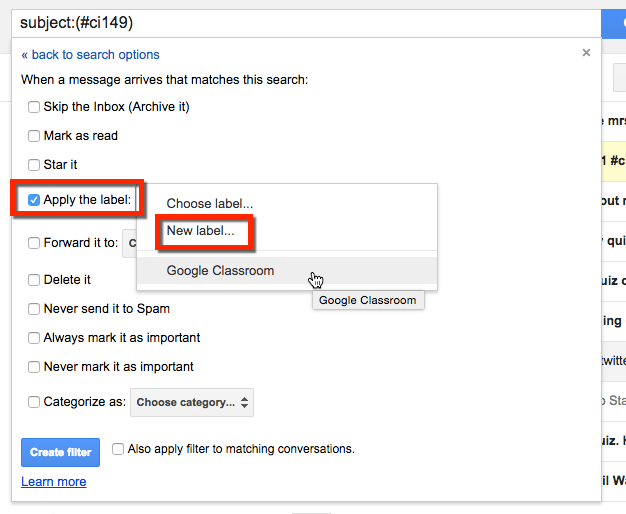
After choosing the filter criteria, choose the behavior you wish to have happen to the email. I choose to label the emails. You may want to have them also skip the inbox. You can then check the label filter when you have time.
Tip
Teach students to include hashtags in their private comments. #late #help #urgent #resubmitted. You can apply filters in Gmail to star the emails or place them in a special folder to make sure you do not miss the notification.