






One of the best things about Google Docs is the ability to collaborate. For my classes students will create their assignments in a Google Doc and share it with me with edit or comment only rights. This allows me to eliminate using class time to collect and pass back papers.
Comments
Google Docs allow me to insert comments, like post it notes, to the side of the document. This allows the student to receive feedback, but not to have to make modifications to the document.
There are 3 ways to insert a comment
- Right click and choose insert comment.
- Use the insert menu and choose comment.
- Use the comment icon in the toolbar.

Command Option M
Using the above methods is great, until you’re grading 100-200 student papers. A keyboard shortcut is to hold down Command Option and M at the same time. (For PC users use Control Alt M).
Place your cursor where you want the comment to appear; alternatively you can highlight sections that you want the comment to appear on.
Command Enter
Touching the mouse will slow you down in making comments. Use Command when you hit the enter key to close the comment. (Control Enter for the PC).
Conversation Comments
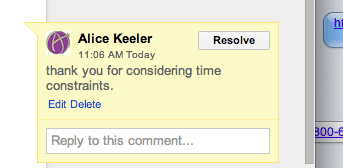
Clicking on one of the yellow comment notes allows for conversation between you and the student. This back and forth commenting allows for mastery learning. Even better this can occur WHILE the student is working on the document. This can allow the student to have confidence of credit when submitting the final draft.
Resolve Comments
Documents can become cluttered with comments, which is a good thing. To clear off the comments, click on one of the comments and choose resolve.
Comment History
One time I spent considerable time going through a students paper making comments. The student almost immediately resolved all of the comments despite their need to have this information in order to bring the paper up to standards.
At the top right, next to the blue share button, is a Comments button. This button will allow you to place comments on the entire document, as opposed to one particular spot in the document. This also reveals the commenting history.







1 thought on “Adding Comments to a Google Doc”
I recently started using kaizena to record audio comments or place video links in to help reteach a skill. Great way to make it more personal. plus it’s free. Here is a YouTube video to show how to use. http://youtu.be/FPlQnEMPwQc.