





This template allows you to copy and paste your roster of students and have them randomly divided up into groups.
The Template
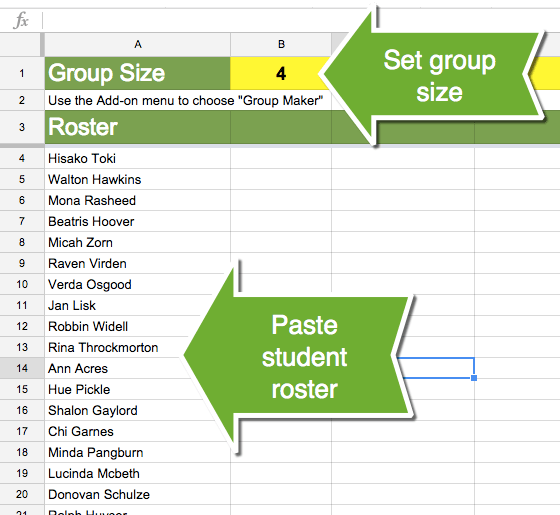
Paste Roster
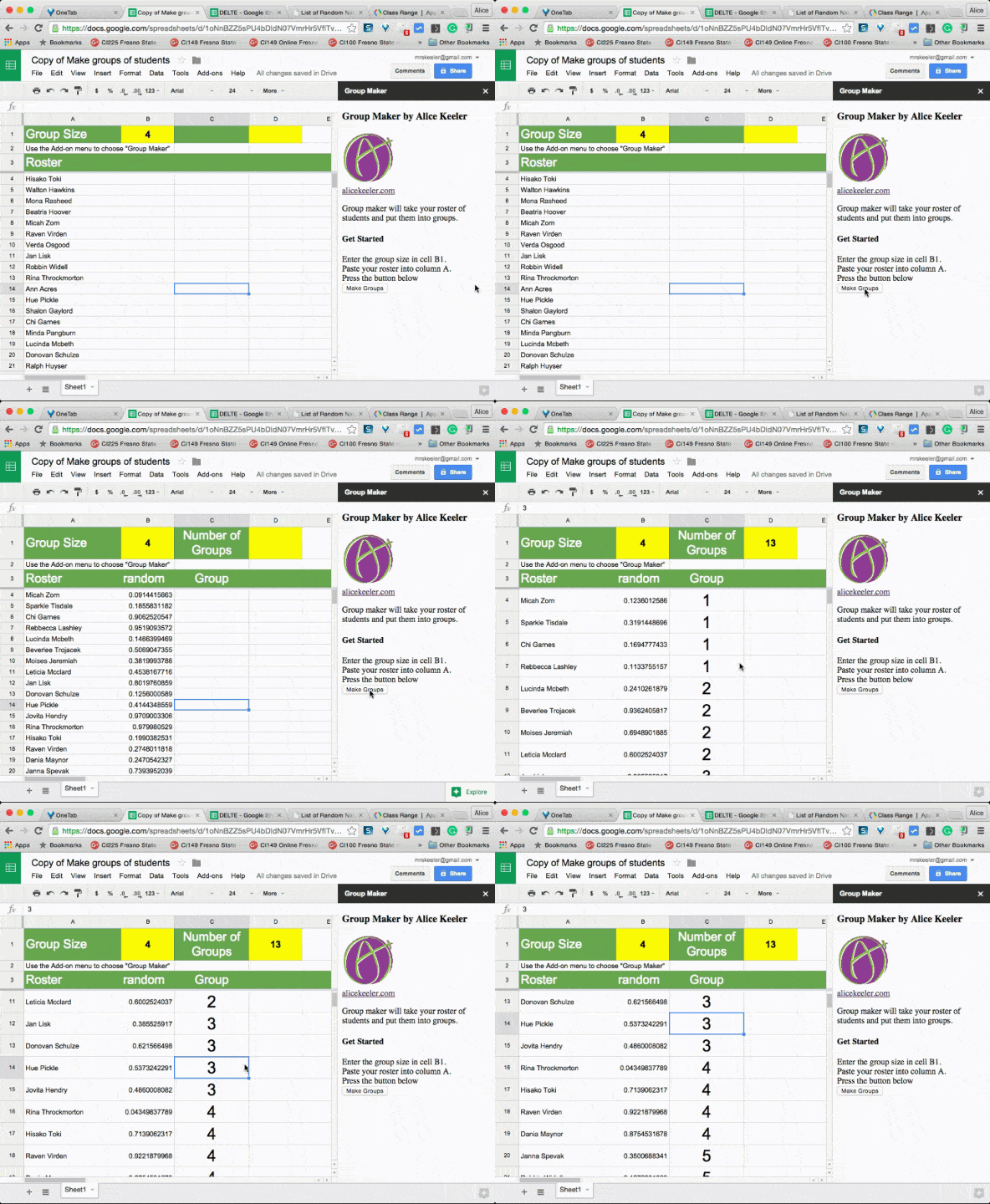
After creating a copy of the template, paste your student roster into column A. Default group size is 4. Change the group size in cell B1.
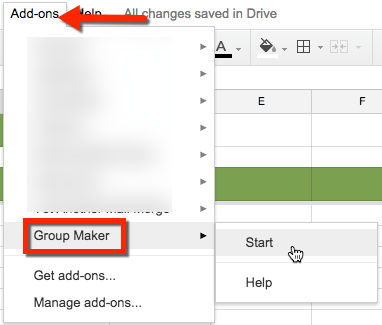
Add On Menu
Use the Add-On menu to find “Group Maker.”
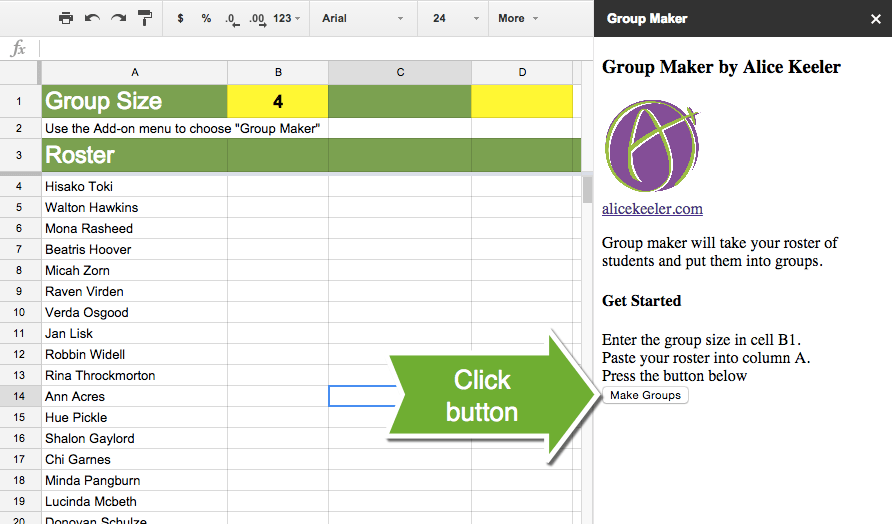
Click the button to make groups.
Each student is assigned a random number. The list is then sorted by random number and students are assigned to a group.






18 thoughts on “Group Maker: Automatically Make Groups with Google Sheets”
Hi Alice,
I love your tweets and site. I learn so much from you! I am trying to learn Group Maker and cannot seem to find it as an add on? Is it still available?
@WallwinS
GroupMaker is a template I created, you have to use my template.
Any plans to publish Group Maker to the add-on gallery?
Who knows
Alice, when I run the script, it starts to make groups and add the links to the group docs then fails. Can you help?
Couple of reasons. If you’re on your school account it might be blocked by your apps admin. Try your @gmail.com account. Other is it times out because your internet is slow
Is there a way to copy and paste Group Maker Google Sheets template allowing a teacher to have 1 Google Sheet with a separate tab for each class?
Using select all, then pasting in to new tab doesn’t seem to work. The format gets copied and pasted but when I try to run the Add-On, it doesn’t work.
If you run group maker for each class you can click on the tab and “send to” and put all the tabs into the same spreadsheet.
Is there a way to use the group maker to ensure even gender groupings?
Uh, you can manually assign groups.
I am trying to use your group maker template. I input the roster names and click the make random groups button and it randomizes the order of the students, gives them a random numerical value, but it only makes 1 group. What am I doing wrong?
Do you have a 30 for the number of group members at the top?
This is an awesome tool! I have all my names in the list, have changed my group size to 3 but when I go to the add on part there is no add on option for Group Maker. Can you help?
It can take a couple of minutes depending on internet speed for it to load the code. In rare instances the code doesn’t get copied and you have to start with a fresh group maker.
I have successfully used Group Maker in the past and LOVE IT! This time, however, the groups are forming, but the names are remaining in alphabetical order and this of course, eliminates the “random” factor. Please help.
Thank you.
The code for sort can be fussy. If you highlight the names and email addresses and right click you can “randomize range”
I just tested it. Works. The sort code can be fussy so if it’s being quirky that day just use the trick of highlighting range of students and right clicking to randomize the range.
Thank you! Exactly what I was looking for