







Link to Slides
When copying and pasting slides from Google Slides into another slides presentation you will be prompted as to if you want to link the slides. This allows you to have a master slide, update information, and have the information updated on the copied slides.
NOT Import
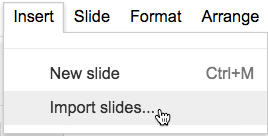
Using the Insert menu you can choose to “Import slides…” Note that this does NOT link the slides.
Control C, Control V
To link the slides you must copy from one presentation and paste into the other. In the original presentation click on the slide tile in the filmstrip on the left-hand side. Copy with Control C. (Command C on a Mac).

Choose “Link Slides”
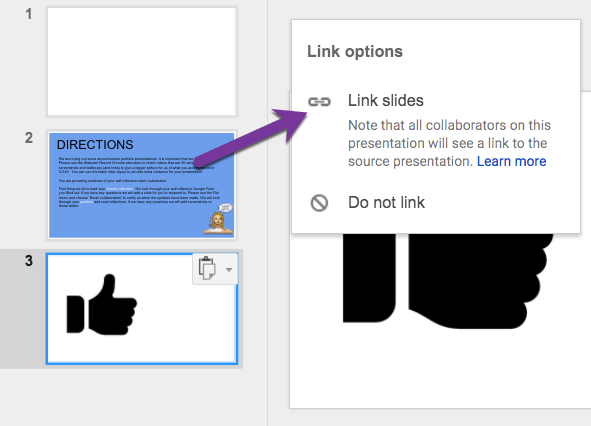
In the destination presentation, paste with Control V into the filmstrip. A pop up will appear giving you the option to “Link slides” or “Do not link.”
Update
The updates do not appear automatically. When the original slides are updated you will need to go to the destination presentation and locate the link icon on the slide. Manually choose “Update.”







5 thoughts on “Google Slides: Link to Other Presentations”
After linking e.g. 10 slides from a parent-presentation into a child-presentation… then improving the 10 master slides … how can i update all 10 slides in the child presentation? Currently I need to “update” each slide individually… a lot of stupid clicking. Isn’t there any shortcut?
Individually
Hello! Is there a reason I do not have the option to update after I have linked slides for automatic updates?
Unfortunately I would not know why you’re having a challenge.
Please disregard my question. I realized what I did. thanks