






Add an Image to Your Tweet
How do you find new ideas; not just for using tech but that too? Twitter is full of innovative awesome educators who share! Create a Twitter account just for teaching and only follow educators who share, give free lesson plans, and free moral support. Follow @burgessdave @jmattmiller @shakeuplearning @ericcurts @jenroberts1 @lisahighfill @catlin_tucker @jcorippo @burgess_shelley @thomascmurray @marvelousmcc @shfarnsworth to get you started!
Share What You’re Doing
I love seeing pictures of people’s classrooms and what kids are doing. Please tweet those! Your phone has a camera, super easy to add a picture to your tweet from mobile.
Use a Google Drawing
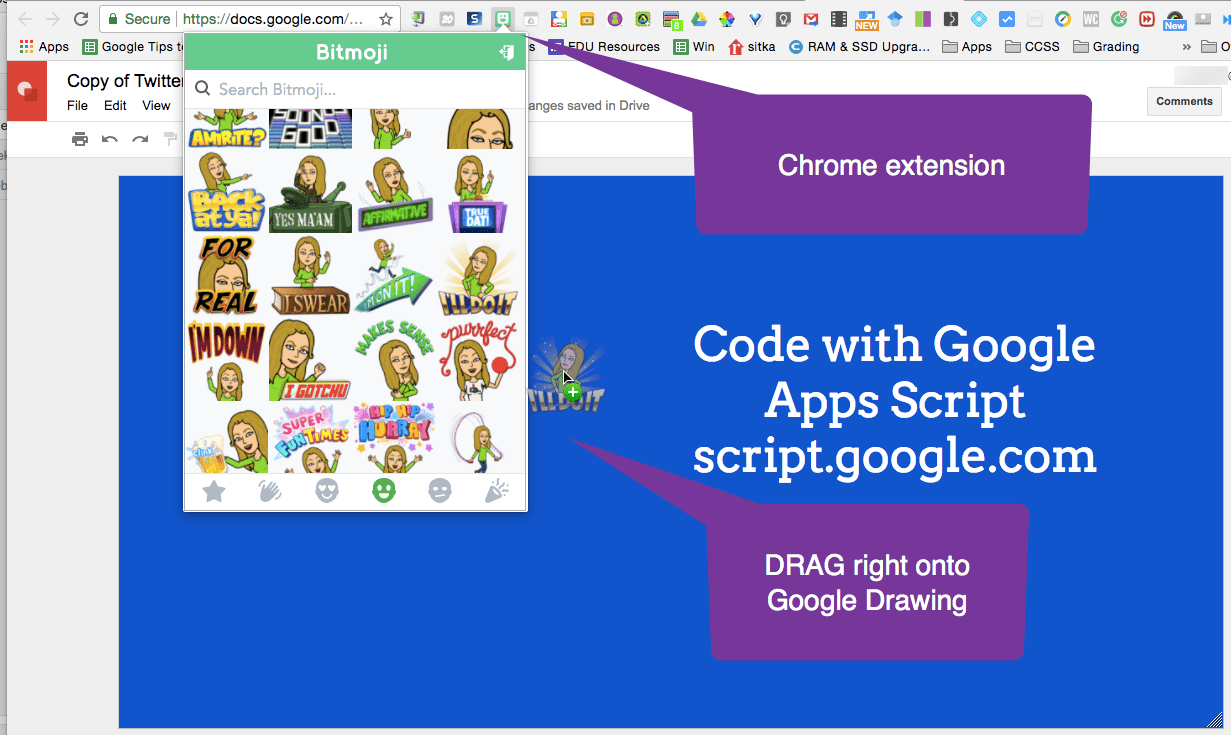
I heard that tweets get 30% more engagement when they include a picture. What I’ve started doing is leaving a Google Drawing open in a tab. I change the background color and drag a Bitmoji from my Chrome extension to the drawing.
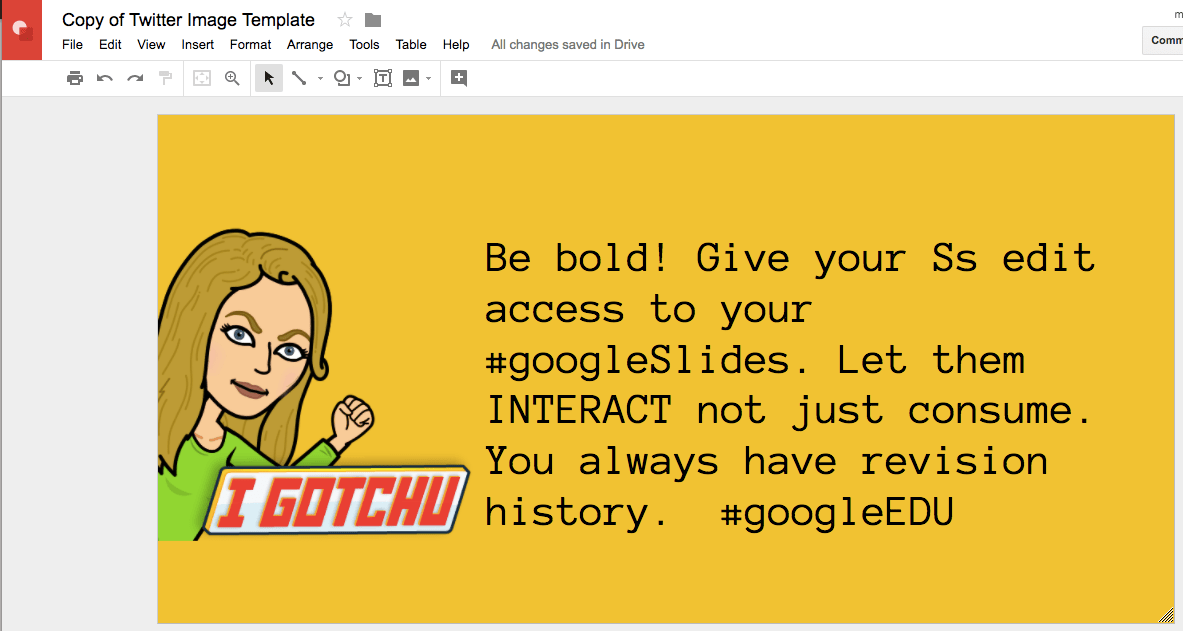
Template
Background Color
Right click on the Google Drawing to change the background color.
Bitmoji Chrome Extension
You can create an avatar of yourself (let a student make it for you, ha!) using Bitmoji. There is also a phone app and the phone app has better clothing choices. But you also want the CHROME Bitmoji extension. It’s an easy way to add a fun graphic.
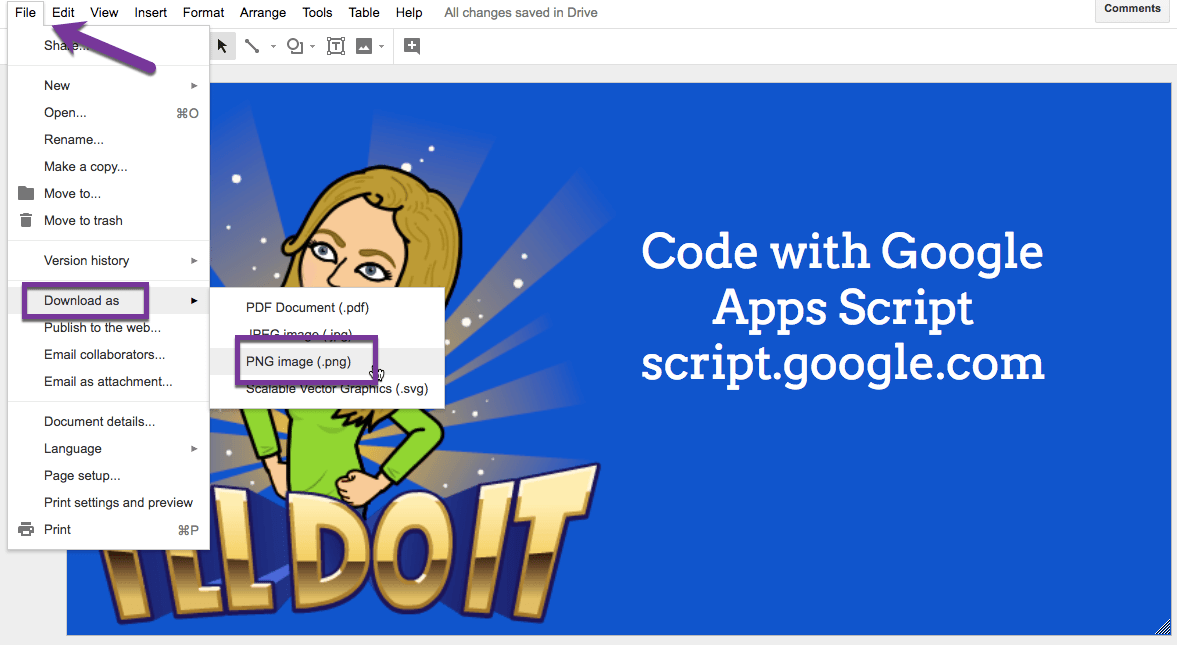
Download Graphic
Use the File menu and choose “Download as” and choose “PNG.”
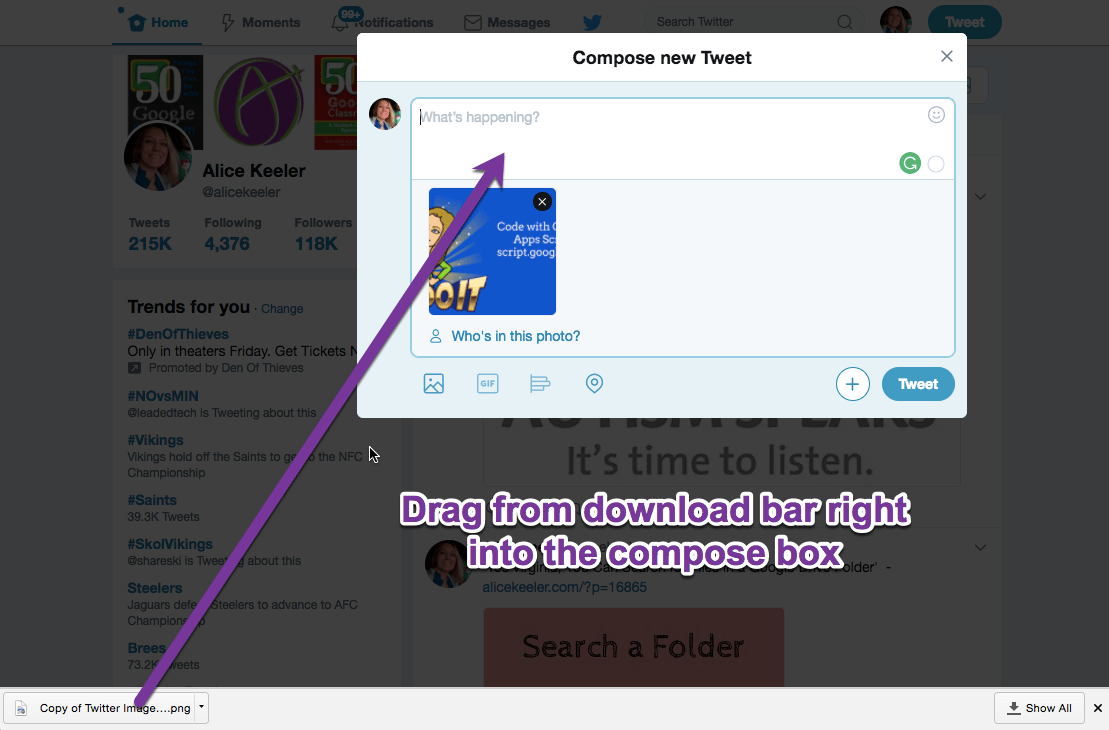
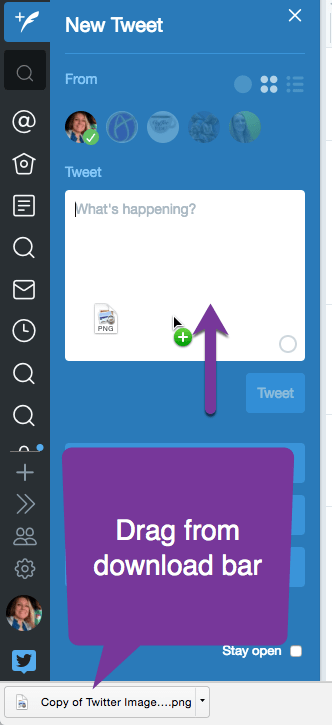
Drag Into a Composed Tweet
In both Twitter and Tweetdeck you can drag straight from the Download Bar into the box where you are composing the tweet.
Control Enter
And just because I like a good keyboard shortcut, try using Control Enter (Command Enter on a Mac) to send that tweet off!





