





Reuse Google Slides
Collaborative Google Slides is one of my favorite activities. One Google Slides, all students with edit access. However, what if you teach multiple classes? Do you need multiple Google Slides? Maybe.
Named Version
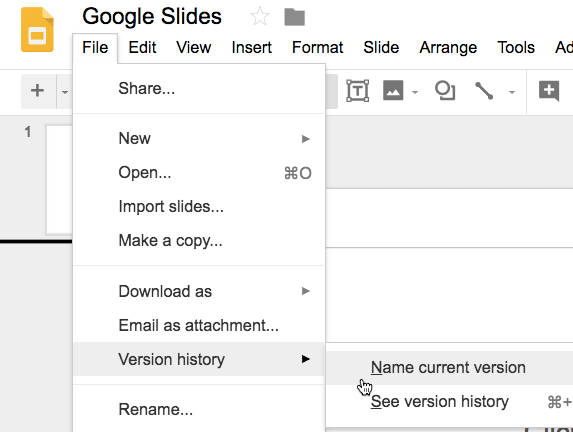
When sharing a Google Slides with edit access to students use the File menu to “Version history” and choose “Name current version.”
Blank Google Slides
I use completely blank Google Slides most often. I ask students to add a slide and put their name in the speaker notes. The first several times you do this activity you should treat it like whiteboards. Just a way for students to share ideas but no intention to collect or grade. Collaborating digitally is not a natural skill, it’s a skill that must be taught.
Create a blank Google Slides before school. Share with edit access with students. At the end of first period use the File menu to “Name current version” as “1st period May 2018.” Then select “See version history” and set the slides to be blank the way they looked before school. Have 2nd period use the SAME Google Slides. Students add slides and put their name in the speaker notes. At the end of 2nd period use the File menu to “Name current version” to “2nd period May 2018.” Go to “See version history” and restore the version from before school that day.
You can keep using the same collaborative Google Slides every period year after year. This keeps your Google Drive a little cleaner.
Copy Per Class
Sometimes it does not make sense to reuse the same Google Slides for each class, you do need each class to have a copy.
Template
Create a Google Slides (blank or with a template). Go to the link alicekeeler.com/copydocsclasses and make a list of all the classes you need a copy for. Use the menu “Create Copies” that is next to the Help menu (note, it can take a minute for the menu to load) to select a Google Slides for you to make a copy of. A copy per class will be created and linked in the spreadsheet. The copies are in Google Drive.





